I recently migrated from Windows to OSX. As a kinda-happy windows user for 20+ years, I was interested in knowing what's the charisma of Apple products.
--- Above is a totally unrelated preface ----------
In the System preference, there's no option to set duplex printing as default. Instead, Apple uses the Common Unix Printing System (CUPS) to manage the network printers. To access the printer settings, open a internet browser and go to
http://127.0.0.1:631/printer. From the web-based interface, click on the name of the printer you want to set duplex printing. Two drop down menus here will allow you to do maintenance and administration tasks to this printer.
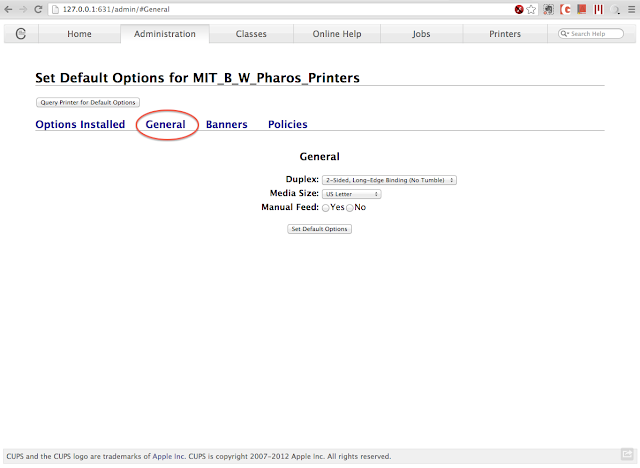
To set duplex printing, choose "Set Default Options" under the administration drop down menu. Click the "General" tab, and the Duplex setting will then show up. Choose 2-Sided, Long-Edge Binding (if you usually print the portrait orientation), and click on "Set Default Options".
The two-sided block should be always checked when you are trying to print. If not, try to restart the computer to clear memory of the printer settings in the applications.
Do more with the printer and the CUPS:
http://127.0.0.1:631/admin